Spinning Up a Small Active Directory Lab in Proxmox
I wanted to get back into Active Directory with something small, clean, and practical.
Not a giant enterprise simulation. Just enough to review the theory with real hands-on work: spin up a domain controller, join a client machine, create a user, test logins, and start working with OUs and Group Policy.
So I built a small isolated AD lab in Proxmox.
The Goal
The goal was to refresh the fundamentals in a way that actually sticks:
- Stand up a Windows Server domain controller
- Join a Windows 11 client to the domain
- Create and test domain users
- Start organizing objects with OUs
- Apply a first GPO and see it work on a real machine
That is the kind of foundation I want solid before going deeper into group design, delegated administration, and more advanced policy work.
The Lab
I kept the setup intentionally simple:
- Hypervisor: Proxmox
- Domain Controller: Windows Server 2022 Standard Evaluation
- Client: Windows 11 Enterprise Evaluation
- Network: isolated internal bridge (
vmbr1) - Domain:
ad.lab
IP plan:
dc01→10.50.0.10win11-01→10.50.0.20
Both VMs live on an isolated network with no default gateway. I wanted the lab separated from the rest of my network so I could test freely without creating noise on the LAN.
The First Big Reminder: DNS Really Matters
One of the most useful refreshers was seeing, again, how central DNS is to Active Directory.
The client was able to join the domain because its DNS pointed to the domain controller:
win11-01DNS →10.50.0.10
That sounds small, but it is one of those details that explains a lot of AD issues. If DNS is wrong, the rest usually falls apart fast.
What I Set Up
Here is the basic flow:
┌─────────────────────┐
│      Proxmox        │
│   isolated vmbr1    │
└─────────┬───────────┘
          │
  ┌───────┴────────┐
  │                │
  ▼                ▼
┌───────────┐   ┌────────────┐
│   dc01    │   │  win11-01  │
│ WinServer │   │ Windows 11 │
│ 10.50.0.10│   │ 10.50.0.20 │
└─────┬─────┘   └──────┬─────┘
      │                │
      │  domain join   │
      └───────┬────────┘
              ▼
           ad.lab
On the server side, I:
- installed Windows Server 2022 with Desktop Experience
- renamed the server to
dc01 - set a static IP
- installed AD DS
- promoted the server to a domain controller for
ad.lab
On the client side, I:
- installed Windows 11 Enterprise Evaluation
- set a static IP
- pointed DNS to
dc01 - joined
win11-01toad.lab
Once that worked, the lab stopped feeling theoretical.
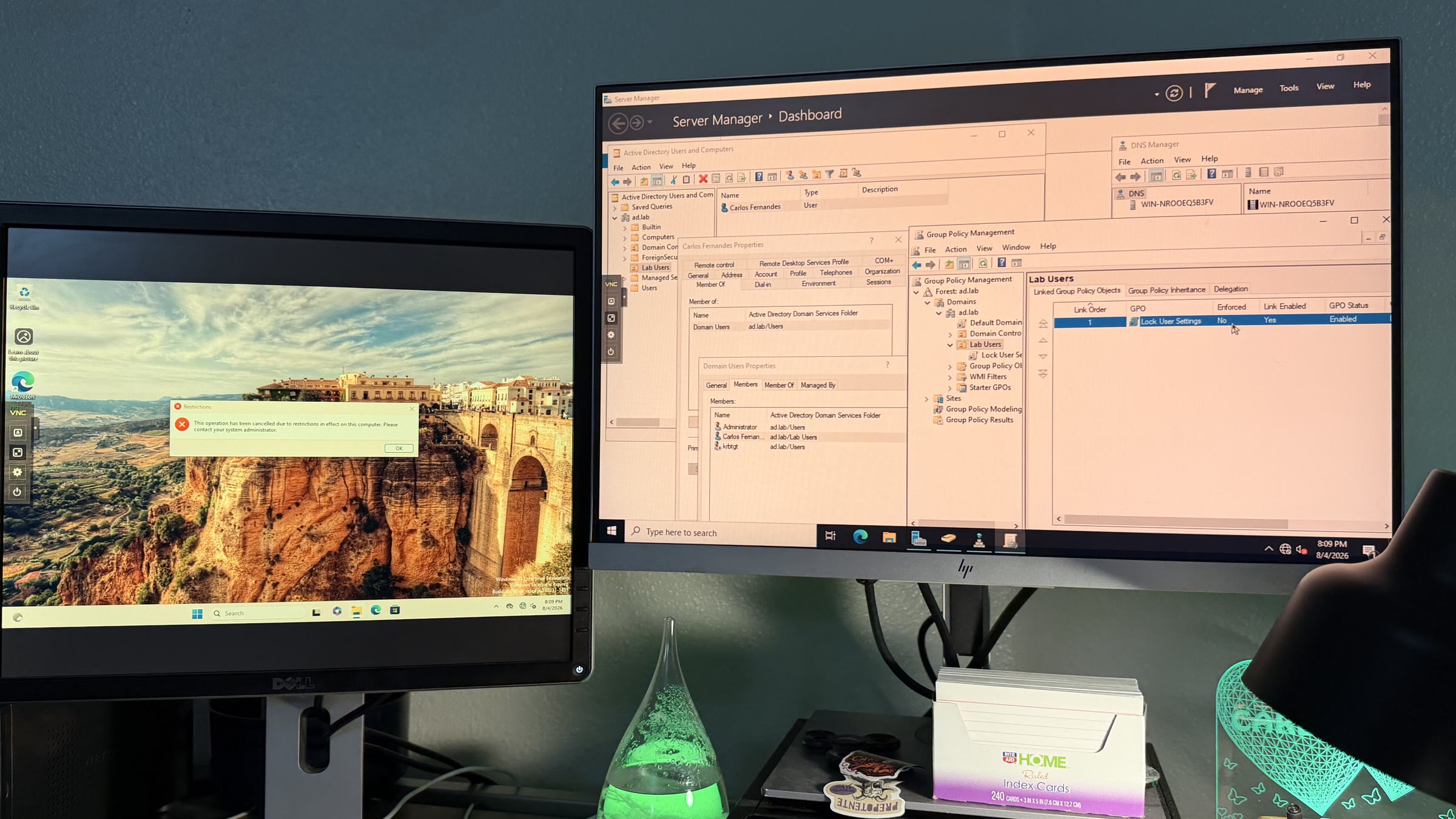
This photo captures the part I like most about lab work: seeing the admin side and the client-side result at the same time. On the right, the domain controller is managing users, DNS, and Group Policy. On the left, the Windows 11 client is already showing the effect of a GPO blocking access to Control Panel and Settings.
The Cool Part
The first moment that really makes it click is when the client joins the domain and you can log into the machine with a domain user instead of a local account.
That is where the AD model becomes real:
- the user lives in Active Directory
- the computer is its own object in the domain
- authentication is centralized on the domain controller
That also helped reinforce an important distinction:
A domain user is not “assigned” to one PC by default. If another machine joins the domain, that same user can usually log in there too unless you specifically restrict it.
What I Tested So Far
After the domain join, I started with the basics:
- created a domain user
- logged into
win11-01with that account - created OUs for users and workstations
- moved the user and computer objects into the right OUs
- created a first GPO to block access to Control Panel and Settings
- confirmed the policy on the client by triggering the restriction message on
win11-01
That last step was a great reminder of the OU/GPO relationship:
- OU = where the object lives
- GPO = the rules applied there
Simple concept, but much easier to understand once you actually see the policy hit a real client machine.
Why I Like This Kind of Lab Work
I like this kind of setup because it turns abstract terminology into something concrete.
It is one thing to read about:
- domain controllers
- OUs
- GPOs
- centralized authentication
It is another thing to stand it up yourself, break it, fix it, and see why the pieces depend on each other.
That is where the learning starts to become usable.
What’s Next
This is just the foundation.
Next I want to go deeper into:
- better OU structure
- security groups and permission design
- more useful GPOs
- user restrictions by computer
- password resets, account disable/enable, and more day-to-day admin tasks
For now, though, this was exactly the kind of review I wanted: small, practical, and hands-on.
The best way I know to stay sharp is still the same: spin something up, test it for real, and make the theory earn its place.